How-to
Print a Superbill
Print or save a superbill for a visit, so a patient can submit it to their insurer.
Last reviewed November 18, 2026
A superbill is an itemized statement of a visit that a patient can submit to their insurer for reimbursement. You print it from the claim screen, with the diagnoses and services exactly as the claim form holds them. Printing a superbill does not create or change a claim.
Before you begin
- Open the visit’s Create claim screen, as described in Create a claim from an encounter, or a draft claim’s Review claim screen, as described in Review claims in coding review.
- Self-pay patients can get a superbill even though a claim can’t be created for them yet.
Print the superbill
- On the claim screen, fill in the diagnoses and service lines.
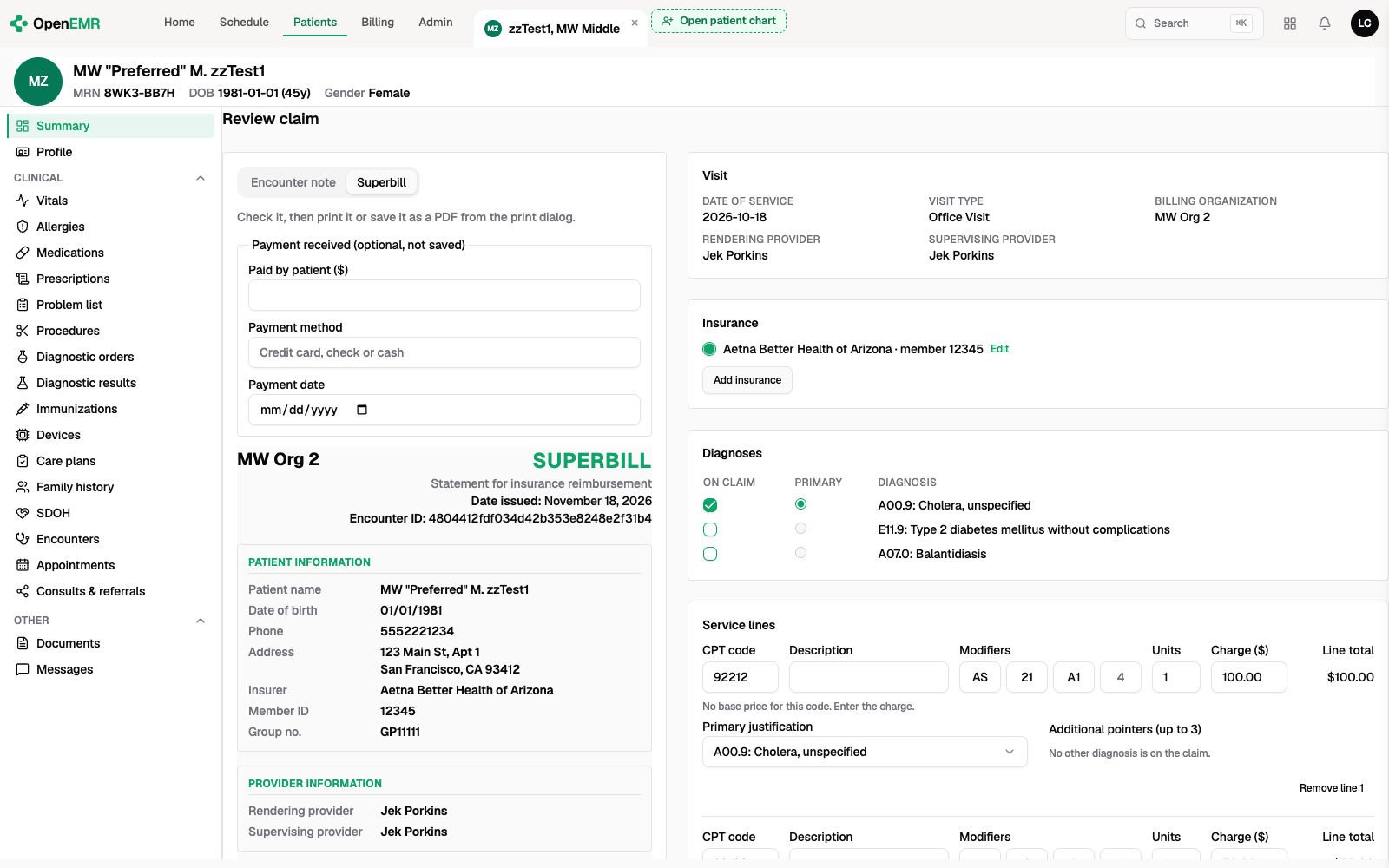
- Select Generate superbill. The Superbill tab opens beside the claim form, next to the Encounter note tab. You can also select the Superbill tab yourself.
- Check the superbill: the practice header, patient and provider information, diagnosis codes, services, and totals. It updates as you change the claim form, so you can compare the two side by side.
- Optionally, under Payment received (optional, not saved), enter Paid by patient ($), Payment method, and Payment date. The amount is printed on the superbill and subtracted from the balance due.
- Select Print or save as PDF.
- In your browser’s print dialog, print the superbill or save it as a PDF.
Recording a patient payment on the superbill will subtract that amount from the total on the superbill but the record is not saved in the system. There are plans to support a patient ledger in the future.
Confirm the result
The printed superbill lists the primary diagnosis as reference A, each service with its diagnosis references, units, rate, and total, and the balance due. A provider’s signature line is filled in only when that provider’s own note for the visit is signed.
Select the Encounter note tab to go back to the note. Nothing on the claim has changed. If you switch back to the Superbill tab, the payment you entered is still there.
Troubleshooting
| Situation | What to do |
|---|---|
| Fix the highlighted entries before generating the superbill. | Complete or correct each highlighted field on the claim form, then select Generate superbill again. |
| The Superbill tab says The claim form has entries to fix, so there is no superbill to print. | Complete or correct each highlighted field on the claim form. The superbill appears in the tab once the form is complete. |
| Print or save as PDF is unavailable while the tab says Loading the superbill… | Wait for the superbill’s records to load. After you edit the encounter’s details, the superbill also waits until the encounter is read again. |
| The tab says a record couldn’t be found or has no name, such as the billing organization | Correct that record, for example in the encounter’s details, then generate the superbill again. |